Integrate the form or app into your WordPress website
There are two ways to add your Trendful resale app to your WordPress website:
- We add it for you. Reply to our email or contact us and we'll tell you what access we need.
- You add it yourself. Follow the steps below. It takes a few minutes.
You'll need your resale app link (for example yourstore.trendful.com). Our team sets it up for you once your Pro or Enterprise subscription is active.
If you are using WordPress Editor
1. Add the code
- In your Dashboard, go to “Plugins” and install WPCode. If it is already installed, simply skip this step.
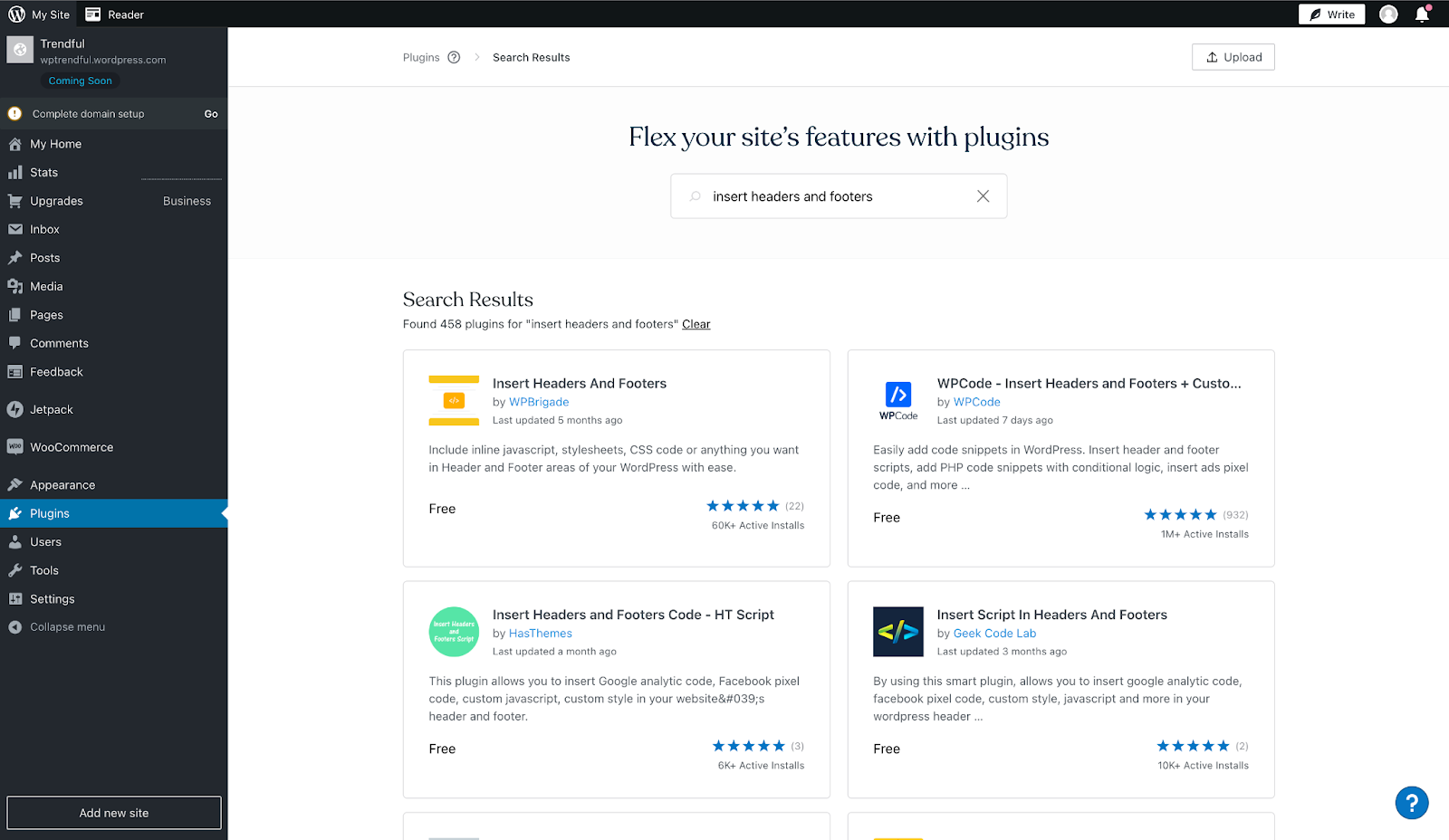
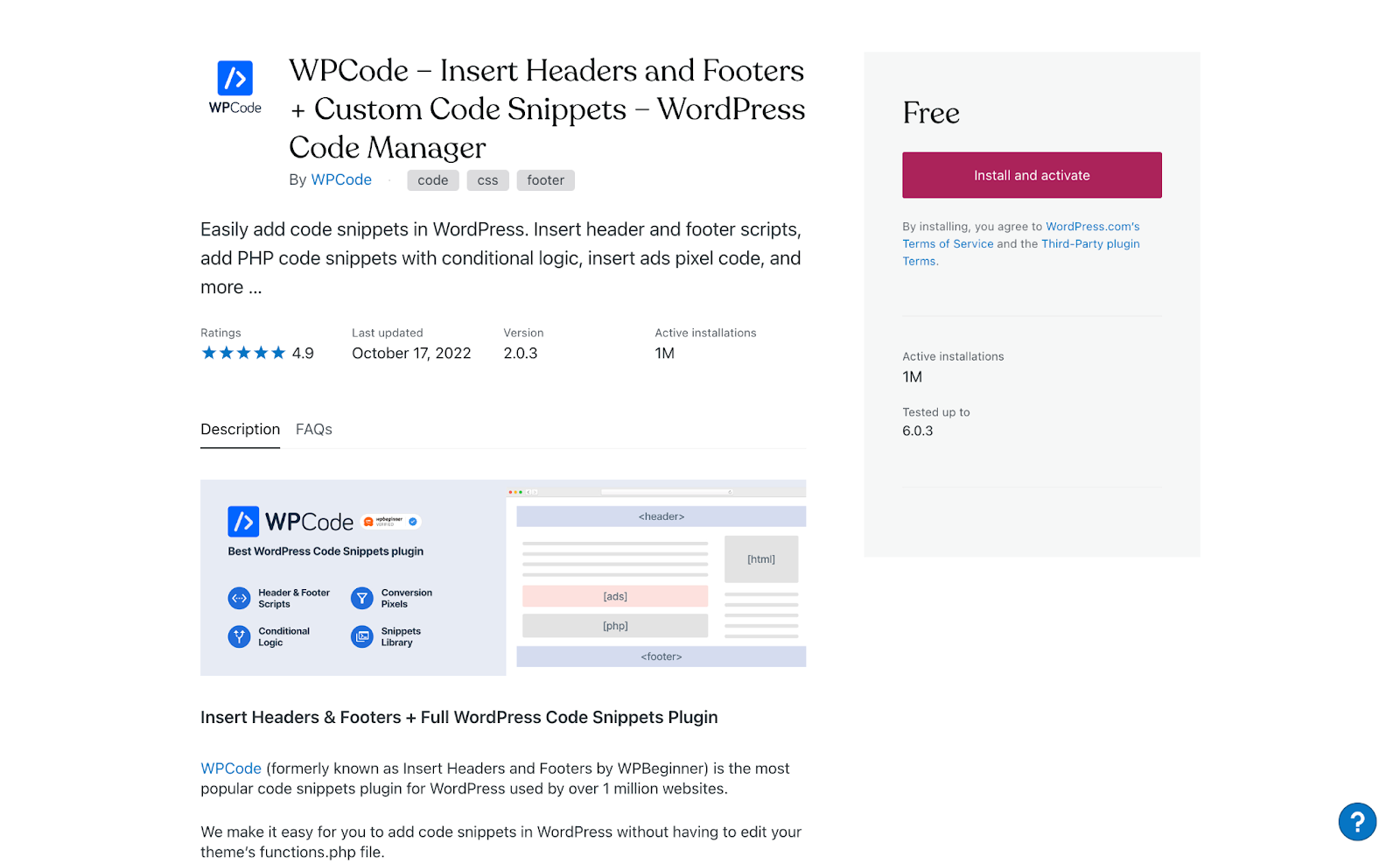
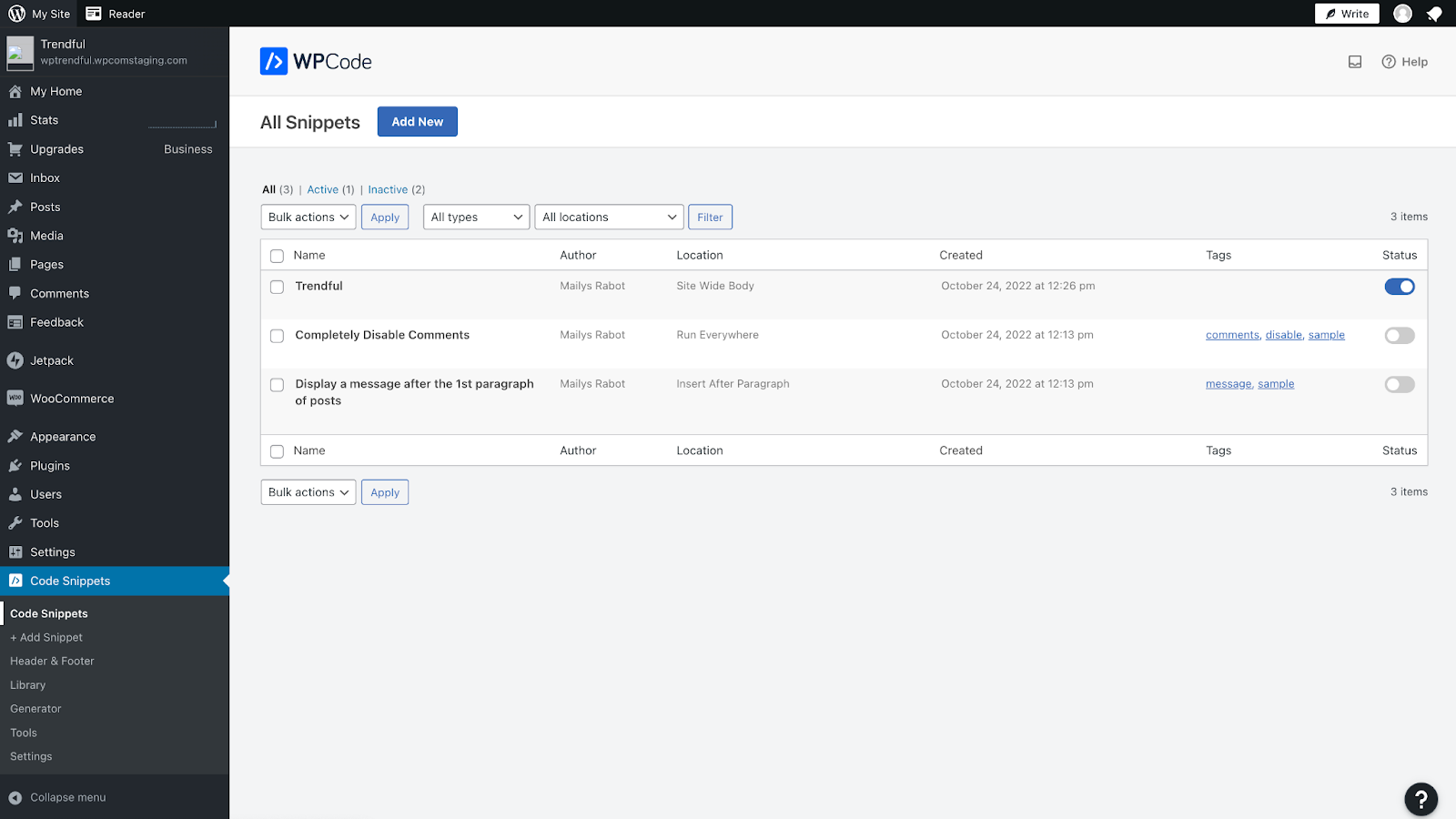
- Once it is installed, go to “Code snippets” and click “Add New”
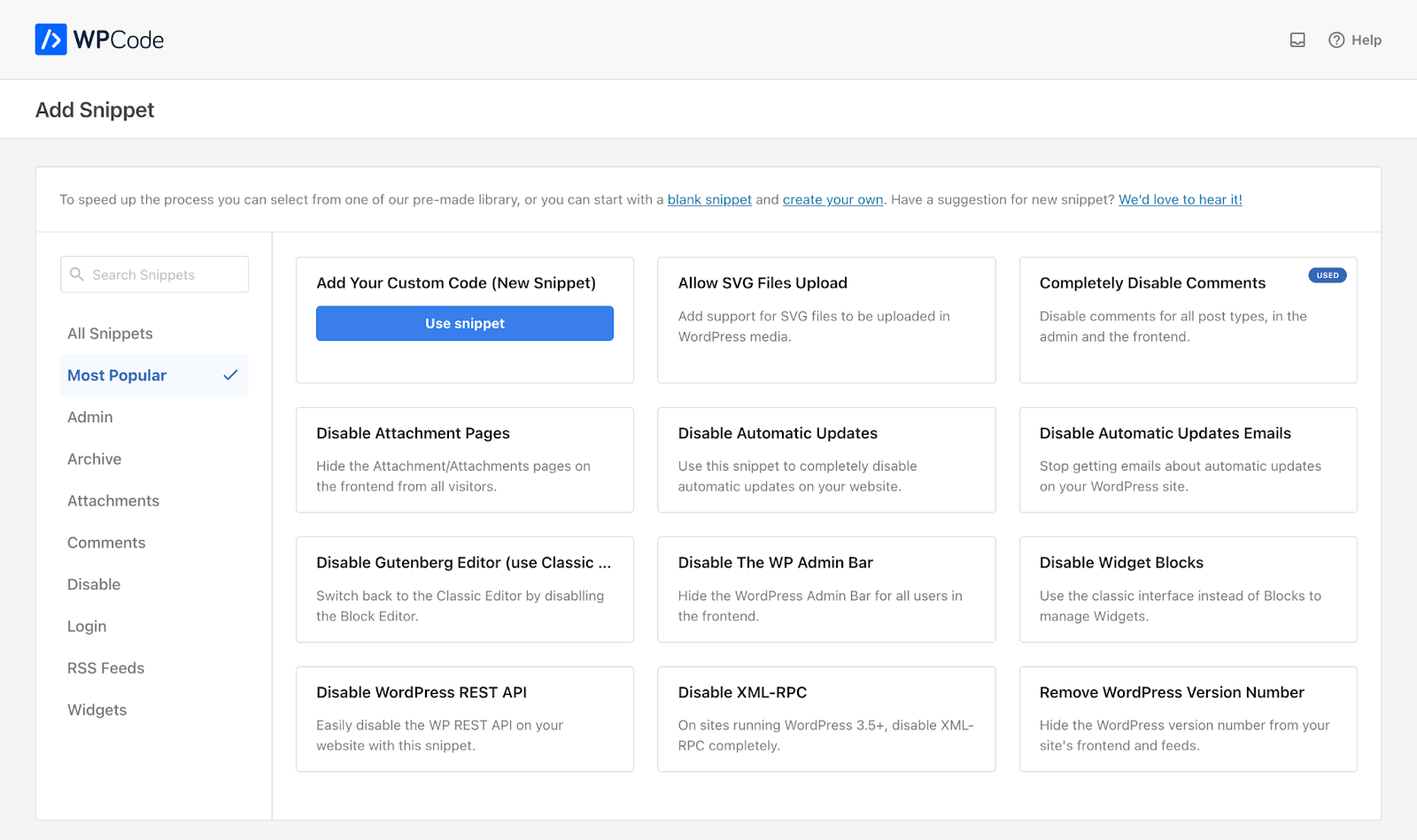
- Select “Add Your Custom Code (New Snippet)” and click “Use snippet”
- In the “Code Preview” section, paste the code from the email we sent you. It already has your resale app link in it, so there's nothing to edit. It looks like this:
<script trendful src="https://yourstore.trendful.com/init.js"></script>
- In the “Insertion” section, select “Auto Insert” and “Site Wide Body”. Then switch the snippet to “Active” and click “Save Snippet”.
2. Add a button
- In your Editor, add a button (you can place it anywhere on your website) and click on “⋮” > “Show more settings”

- Click on “Advanced” and add the class “trendful-button”. Any button or link with this class opens your resale app when clicked.

- Save your changes to publish them live.
Once it's on your site, send us the page link and we'll check everything with you before your customers see it.
Adding your sell form
You can also add your sell form to your website. Copy its link in Settings → Preferences → Sell Form (on Pro and Enterprise, Sell Form & Resale App) and use it as the link of any button. Want it to show right in a page instead? Contact us and we'll help.
If you don't use WordPress Editor
You can paste the same code just before </body> on your website. See our guide for any other website, or contact us and we'll add it for you.